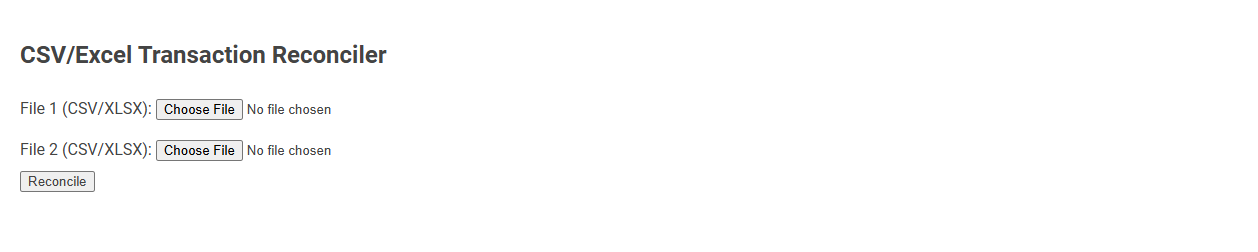
CSV/Excel Transaction Reconciler is a tool for comparing two transaction files in CSV or Excel formats to identify differences or matches. It streamlines the reconciliation process by detecting discrepancies between financial records, ensuring data accuracy and resolving inconsistencies efficiently. Users upload two transaction files and click "Reconcile" to receive a clear comparison report.
How to use this tool?
Complete Guide: How to Use the CSV/Excel Transaction Reconciler Tool
-
Prepare Your Files:
Ensure you have two files you want to compare. Supported formats are CSV (.csv) and Excel (.xlsx). Typically, these files contain lists of transactions from different systems/banks/accounts. -
Access the Tool:
Open the CSV/Excel Transaction Reconciler tool in your web browser. You should see an interface similar to the one in the screenshot. -
Select the First File:
Click the Choose File button next to File 1 (CSV/XLSX).
Browse your computer and select the first transaction file for comparison. -
Select the Second File:
Click the Choose File button next to File 2 (CSV/XLSX).
Browse and select the second transaction file. -
Start Reconciliation:
Click the Reconcile button to begin the transaction comparison process. -
Review the Results:
After processing, the tool will display results--usually highlighting:- Matching transactions
- Unmatched transactions in each file
- Missing or extra entries
- Any discrepancies between the files
-
Next Steps:
- Review unmatched or discrepant transactions to investigate issues.
- If allowed, export or download a report for your records.
- Repeat as necessary for other file sets.
-
Troubleshooting:
- Make sure both files are in supported formats and not corrupted.
- If an error occurs, check that your files open normally in Excel or a CSV viewer.
- Contact support if you encounter persistent issues.
Tips for Best Results:
- Use files with consistent formatting (same columns, headers, date formats, etc.).
- Remove duplicates or extra spaces before uploading.
- Review your reconciliation output for accuracy.
Introduction to Free Online CSV and Excel Transaction Reconciliation
Free online CSV and Excel transaction reconciliation tools streamline financial data verification by automatically comparing transaction records across multiple files. These platforms support extensive data formats and provide real-time identification of discrepancies, enhancing accuracy and saving time. Users benefit from intuitive interfaces and customizable matching algorithms, making complex reconciliation processes accessible without specialized software.
Key Features of the Transaction Reconciler Tool
The CSV/Excel Transaction Reconciler Tool offers automated matching of transaction records across multiple files, enhancing accuracy and saving time. It supports bulk data imports from diverse sources, enabling seamless integration with existing financial systems. Advanced discrepancy detection highlights mismatches, facilitating swift resolution and ensuring data integrity.
Supported File Formats: CSV and Excel Explained
Your CSV/Excel transaction reconciler supports both CSV and Excel file formats, enabling seamless import of transaction data. CSV files offer a lightweight, plain-text format ideal for quick data transfers, while Excel files provide advanced features, such as multiple sheets and rich formatting. This compatibility ensures your reconciliation process is efficient and adaptable to various financial data sources.
Step-by-Step Guide to Using the Reconciliation Tool
Step 1: Import your CSV or Excel transaction files into the reconciliation tool by selecting the appropriate file format and uploading your documents. Step 2: Map corresponding fields such as date, amount, and transaction ID between your bank statement and internal records to ensure accurate matching. Step 3: Review matched transactions highlighted by the tool, resolve any discrepancies manually, and generate a detailed reconciliation report for your records.
Uploading and Selecting Transaction Files for Comparison
Uploading and selecting transaction files in CSV or Excel format streamlines the reconciliation process by enabling seamless data import and organization. You can easily choose specific transaction files to compare, ensuring accuracy and efficiency in identifying discrepancies. This functionality supports various file types and sizes, making transaction management flexible and user-friendly.
Running the Reconciliation and Understanding the Process
Running the reconciliation in a CSV/Excel transaction reconciler involves importing transaction files, mapping data fields, and executing automated matching algorithms to identify discrepancies. The process compares transaction records from multiple sources, flags unmatched entries, and generates detailed reports for review. Understanding this workflow ensures accurate financial tracking and efficient resolution of inconsistencies.
Interpreting Reconciliation Results and Reports
Interpreting reconciliation results and reports in a CSV/Excel transaction reconciler involves identifying matched, unmatched, and partially matched transactions with clear visual indicators. Your ability to analyze discrepancies, such as date or amount differences, helps ensure accurate financial records and timely issue resolution. Detailed summary reports provide insights into reconciliation status, facilitating informed decision-making and audit readiness.
Troubleshooting Common CSV/Excel Reconciliation Issues
Troubleshooting common CSV/Excel reconciliation issues involves identifying data format inconsistencies, such as mismatched date fields or incorrect decimal separators, which can disrupt accurate matching. You should ensure that all transactions are standardized by cleaning and aligning columns before processing to prevent reconciliation errors. Leveraging built-in validation tools helps detect duplicates, missing entries, and formula errors that commonly cause reconciliation discrepancies.
Best Practices for Accurate Transaction Comparison
Best practices for accurate transaction comparison in CSV/Excel transaction reconcilers include standardizing date and currency formats to ensure consistent data interpretation. Implementing automated matching algorithms that account for slight discrepancies in transaction descriptions improves accuracy. Regularly updating reconciliation rules and performing manual reviews for unmatched entries minimize errors and enhance overall reliability.
CSV/Excel transaction reconciler Tool Preview