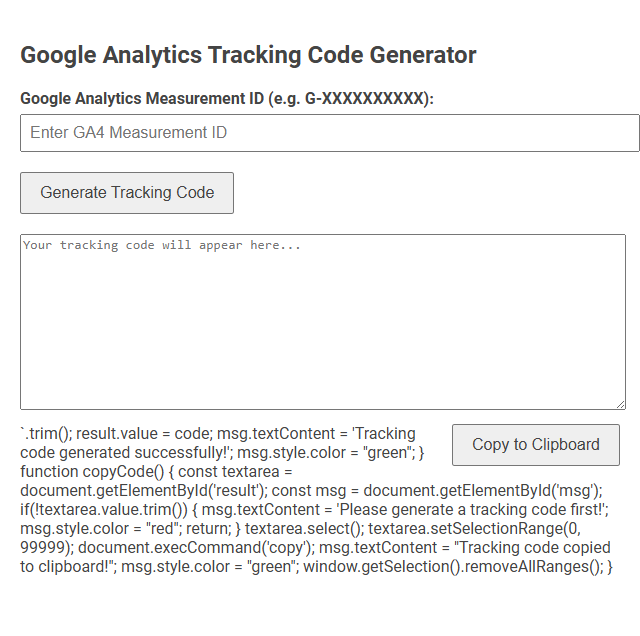
The Google Analytics Tracking Code Generator tool allows users to quickly create a custom Google Analytics tracking code snippet by entering their GA4 Measurement ID. This tool helps website owners or developers implement Google Analytics easily, ensuring accurate visitor and event tracking for analysis and reporting. To use it, simply input your ID, click to generate the code, and then copy and paste the snippet into your website's HTML.
How to use this tool?
Complete Guide: Using the Google Analytics Tracking Code Generator Tool
-
Access the Tool:
Open the Google Analytics Tracking Code Generator tool interface as shown in the image. -
Enter Measurement ID:
In the field labeled Google Analytics Measurement ID (e.g. G-XXXXXXXXXX):, enter your Google Analytics 4 Measurement ID (format: G-XXXXXXXXXX). Obtain this ID by logging into your Google Analytics account, navigating to your GA4 property, and copying the Measurement ID. -
Generate Tracking Code:
Click on the Generate Tracking Code button. This action will create your personalized tracking script. -
View Your Tracking Code:
The generated tracking code will appear in the large textarea labeled Your tracking code will appear here.... -
Copy the Code:
Click the Copy to Clipboard button to copy the generated code. A confirmation message should appear indicating a successful copy. -
Implement the Code:
Paste the copied tracking code into the<head>section of your website's HTML to activate Google Analytics tracking on your web pages. -
Verify Installation:
After adding the code to your site, check your Google Analytics dashboard to ensure data is being collected properly.
Troubleshooting & Tips
- Ensure you use your correct Measurement ID, starting with "G-".
- If the code doesn't appear, double-check that the input is filled and try again.
- The tracking code must be included on every page you wish to track.
- If you need to regenerate the code, simply enter or change your Measurement ID and click Generate Tracking Code again.
Best Practices
- Always keep your Measurement ID secure and only share it with trusted team members.
- Regularly check your Analytics data to ensure tracking is consistent and accurate.
- Update your tracking code if you ever create a new GA4 property or change Measurement IDs.
Introduction to Free Google Analytics Tracking Code Generators
Free Google Analytics tracking code generators simplify the process of creating customized tracking scripts for websites. These tools automatically generate accurate tracking codes compatible with the latest Google Analytics versions, eliminating manual coding errors. Utilizing these generators enhances data collection efficiency, enabling precise visitor behavior analysis and improved marketing strategies.
Key Features of the Tracking Code Generator Tool
The Google Analytics tracking code generator simplifies your implementation process by creating customized tracking scripts tailored to your website's needs. Key features include automatic generation of Global Site Tag (gtag.js), seamless integration with Google Analytics 4 properties, and options for enhanced measurement settings. This tool ensures accurate data collection with minimal manual coding, optimizing your analytics setup for better performance insights.
Step-by-Step Instructions for Generating Tracking Codes
Google Analytics tracking code generator simplifies creating customized tracking codes by guiding users through essential setup steps. Start by entering your website URL and selecting the appropriate tracking type, such as Universal Analytics or GA4. Complete the process by copying the generated code snippet and embedding it into your site's HTML to enable accurate data collection.
How to Obtain Your Google Analytics Measurement ID
To obtain your Google Analytics Measurement ID, sign in to your Google Analytics account and navigate to the Admin section. Select the property you want to track, then click on Data Streams and choose your web data stream. Your Measurement ID, starting with "G-", is displayed at the top right of the stream details page for use in your tracking code.
Best Practices for Implementing Tracking Code
Best practices for implementing Google Analytics tracking code include placing the script in the
section to ensure early and accurate data capture. Use the latest Global Site Tag (gtag.js) to leverage enhanced features and compatibility with Google products. Regularly verify tracking code deployment with Google Tag Assistant to prevent data discrepancies and maintain reliable analytics.Common Issues and Troubleshooting Solutions
Common issues with Google Analytics tracking code generators include incorrect placement of the code snippet, outdated tracking IDs, and conflicts with other scripts on your website. Solutions involve verifying the tracking ID matches your Google Analytics property, ensuring the code is inserted immediately before the closing tag, and checking for JavaScript errors that may prevent data collection. Regularly testing your implementation using Google Tag Assistant or the real-time reports in Google Analytics helps identify and resolve tracking problems effectively.
Benefits of Using Automated Tracking Code Tools for Marketers
Google Analytics tracking code generators streamline the implementation process by creating accurate, error-free scripts tailored to your website. These automated tools save time and reduce manual coding mistakes, ensuring precise data collection for insightful marketing analysis. You gain enhanced efficiency and reliable tracking that supports data-driven decision-making.
How to Verify Proper Google Analytics Installation
To verify proper Google Analytics installation using the tracking code generator, you must first insert the generated code snippet into your website's header. Use Google Tag Assistant or the real-time reports in your Google Analytics dashboard to confirm that your site is sending accurate data. Ensuring your tracking code functions correctly allows you to reliably monitor user interactions and traffic sources.
Security Tips for Handling Your Measurement ID
Protect your Measurement ID by never sharing it publicly or embedding it in unsecured websites to prevent unauthorized access. Regularly review and restrict access permissions within your Google Analytics account to maintain control over your data. Implement server-side tagging where possible to enhance the security of your tracking setup.
Google Analytics tracking code generator Tool Preview