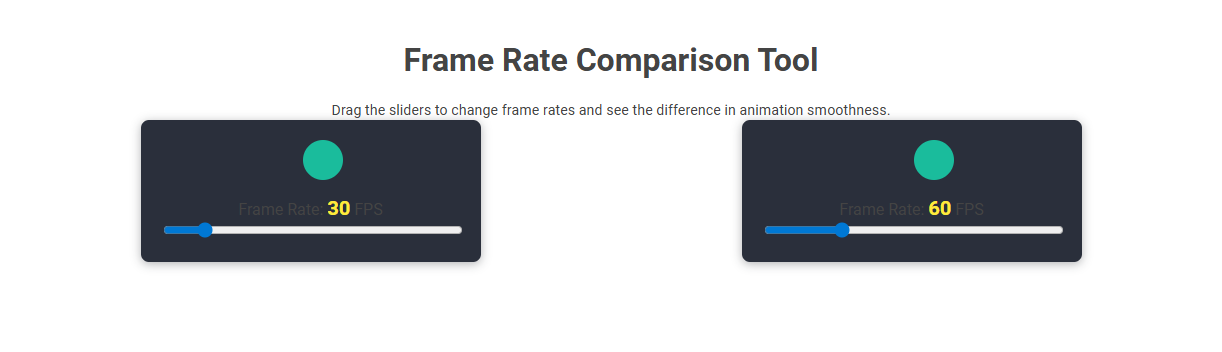
The Frame Rate Comparison Tool visually demonstrates the difference in animation smoothness by allowing users to adjust and compare two frame rates side by side. This tool is useful for understanding how higher or lower frames per second (FPS) affect visual performance in graphics, games, and videos. Users drag sliders to set each animation to a specific FPS, instantly observing the impact on motion fluidity.
How to use this tool?
Complete Guide: How to Use the Frame Rate Comparison Tool
- Locate the Sliders: The tool displays two panels side by side. Each panel contains a slider and a bouncing animation above it, labeled with its current frame rate (e.g., 30 FPS and 60 FPS).
- Understand the Purpose: This tool lets you visually compare different frame rates by adjusting each slider. A higher FPS (frames per second) generally means smoother animation.
-
Adjust the Frame Rate:
- Click and drag the blue knob on the slider in each panel.
- As you move the slider, the Frame Rate number will update to reflect your selected FPS value.
-
Observe the Animation:
- Watch the movement of the green circle above each slider.
- The circle's motion will become smoother as you increase the FPS and choppier as you decrease it.
-
Compare Panel Animations:
- Set each slider to different frame rates (for example, one to 30 FPS and the other to 60 FPS).
- Observe how the animation at 60 FPS is significantly smoother than at 30 FPS.
-
Experiment with Settings:
- Try various combinations to understand how frame rate impacts perceived smoothness.
- Drag both sliders to the minimum and maximum values to see the most dramatic differences.
-
Use the Tool for Learning:
- This comparison helps illustrate why higher frame rates are desirable in video, gaming, and animation contexts.
- Use it to educate others or decide on frame rate settings for your projects.
Tip: Use side-by-side comparison to clearly see the real-world effect of frame rates on motion smoothness.
Introduction to Frame Rate Comparison in Videography
A Frame Rate Comparison Tool evaluates differences in frames per second (FPS) between video clips to ensure smooth playback and quality. Frame rate in videography directly influences motion clarity, with standard rates including 24 FPS for cinematic effect and 30 or 60 FPS for smoother motion. Using this tool helps videographers select optimal frame rates for diverse projects, enhancing visual experience and reducing motion blur.
Key Features of the Free Online Frame Rate Tool
The Free Online Frame Rate Tool offers precise comparison of video frame rates, supporting formats from 24fps to 120fps for accurate analysis. Users benefit from instant frame rate detection, side-by-side visual comparison, and customizable playback speed to evaluate smoothness and performance. This tool requires no installation, ensuring fast access and user-friendly interface ideal for video editors, gamers, and developers.
Why Frame Rate Matters: Visual Impact and User Experience
Frame rate directly affects the smoothness and clarity of visual content, making your viewing experience more immersive and less straining on the eyes. Higher frame rates deliver fluid motion and crisp details, essential for gaming, video playback, and interactive applications. A frame rate comparison tool helps you identify the best settings to optimize visual impact and enhance your overall user experience.
Step-by-Step Guide: Using the Frame Rate Comparison Tool
Step-by-Step Guide: Using the Frame Rate Comparison Tool helps you analyze video performance by comparing frame rates across different clips. First, upload your video files and select the desired frame rate parameters for accurate measurement. Review detailed frame rate metrics and visual graphs to identify performance inconsistencies or improvements efficiently.
Customizing Frame Rates: Adjust Sliders for Precise Comparison
The Frame Rate Comparison Tool enables users to customize frame rates by adjusting intuitive sliders for precise side-by-side analysis. Users can set exact frame rate values to observe smoothness and motion differences between videos. This functionality enhances content optimization for gaming, film, and streaming applications.
Real-Time Animation: Observing Motion Differences in FPS
A Frame Rate Comparison Tool enables real-time animation analysis by highlighting motion differences across various FPS settings, crucial for developers optimizing visual fluidity. This tool captures frame transitions to reveal discrepancies in animation smoothness between 30 FPS, 60 FPS, and higher refresh rates. Utilizing precise motion metrics, it assists in selecting optimal frame rates that enhance user experience in gaming and interactive media.
Side-by-Side Analysis: Benefits for Creators and Educators
Frame rate comparison tools enable side-by-side analysis, allowing creators and educators to visually evaluate motion smoothness and video quality across different frame rates. This method highlights specific differences in fluidity and detail retention, aiding in informed decisions for video production and educational content design. Enhanced frame rate insights improve engagement and learning outcomes by optimizing visual presentation according to the target audience's needs.
Applications in Video Production, Gaming, and Animation
A frame rate comparison tool enhances your ability to optimize video production by accurately analyzing frame transitions, ensuring smooth motion and improved visual quality. In gaming, it helps identify performance bottlenecks by comparing frame rates across different hardware setups, leading to more responsive gameplay. Animation projects benefit from precise frame rate matching, allowing for seamless integration of scenes and consistent timing throughout the production.
Tips for Maximizing Your Frame Rate Comparison Experience
Use a reliable frame rate comparison tool that supports multiple video formats and displays real-time FPS data. Optimize your hardware settings by closing unnecessary applications and updating your graphics drivers to ensure accurate comparisons. Adjust the tool's settings for resolution and refresh rate to match your display for the best frame rate analysis.
Frame rate comparison tool Tool Preview