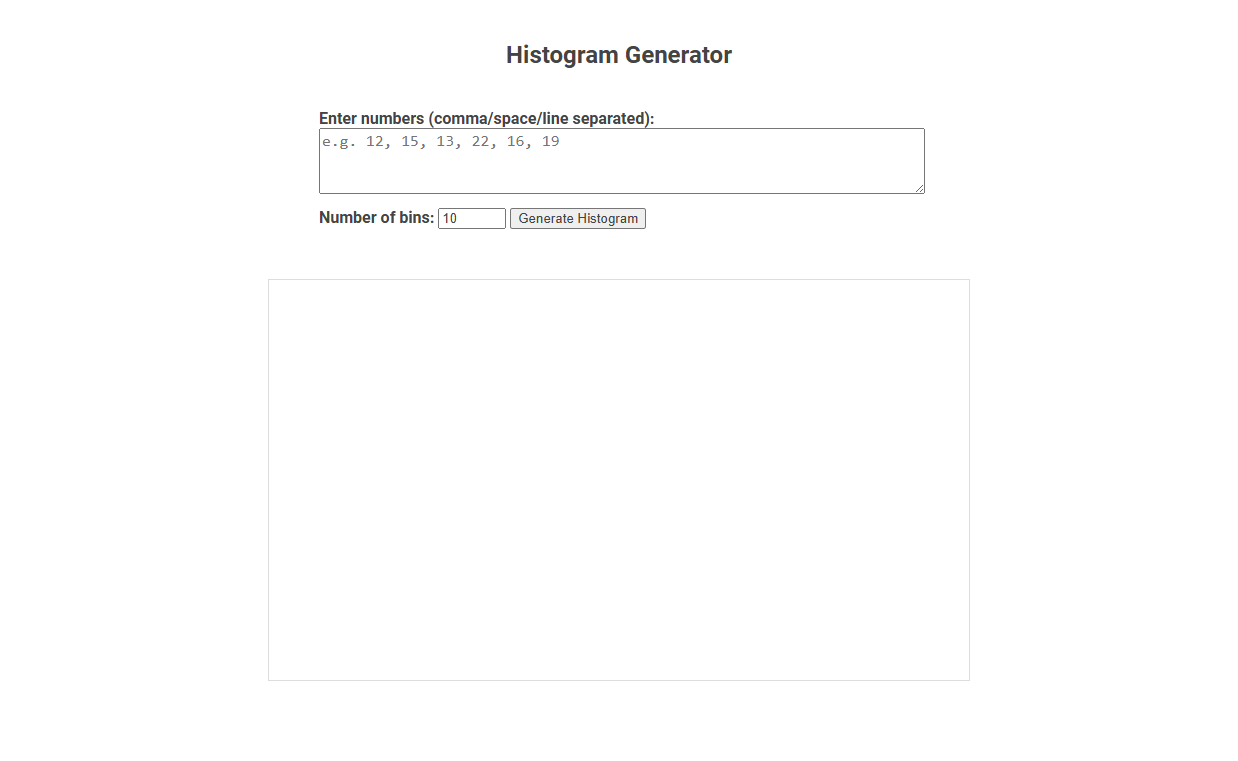
The Histogram Generator tool visually represents the distribution of numerical data by allowing users to input values and customize the number of bins for grouping data. This tool helps users quickly identify patterns, trends, and outliers in datasets, making it valuable for statistical analysis and data exploration. To use, enter comma-, space-, or line-separated numbers, specify the desired number of bins, and click "Generate Histogram" to view the graph.
How to use this tool?
Complete Guide: How to Use the Histogram Generator Tool
-
Access the Tool:
- Open your browser and navigate to the Histogram Generator tool web page.
-
Input Your Data:
- Locate the text box labeled Enter numbers (comma/space/line separated).
- Enter your data set using any of the following separators:
- Commas (e.g., 12, 15, 13, 22, 16, 19)
- Spaces (e.g., 12 15 13 22 16 19)
- Line breaks (e.g., each number on a new line)
- You may copy and paste your numbers from another source if needed.
-
Set the Number of Bins:
- Find the Number of bins field below the text box.
- Enter the number of bins (bars) you want for the histogram (default is usually 10).
- The bins control how detailed or grouped your histogram will be.
-
Generate the Histogram:
- Click the Generate Histogram button.
- The tool processes your data, divides it into the specified number of bins, and displays the histogram in the blank area below.
- If there are any issues with your input, adjust your data format or check for invalid entries.
-
Analyze Your Histogram:
- View the histogram in the large area at the bottom of the page.
- Each bar (bin) represents the frequency of numbers within a certain interval range.
- Use this visual to understand the distribution, spread, peaks, and patterns in your data.
-
Refine As Needed:
- If you want a different level of detail, change the number of bins and click Generate Histogram again.
- You can also modify or replace your data and generate a new histogram as often as desired.
Tips
- Input must be numeric; non-numeric characters or empty lines can cause errors.
- A higher number of bins creates more detailed histograms; fewer bins create broader groupings.
- This tool works best for moderate to large-sized numeric data sets.
Introduction: The Power of Histogram Data Visualization
Histogram generators transform raw data into clear visual insights by grouping values into defined intervals, allowing you to quickly identify patterns, trends, and outliers. This powerful data visualization tool simplifies complex datasets, making analysis more intuitive and actionable. Embracing histogram visualization enhances decision-making by revealing the underlying distribution of your data.
Why Use an Online Histogram Generator Tool?
An online histogram generator tool simplifies data visualization by quickly converting raw data into clear, interpretable histograms. You can efficiently analyze data distribution and identify patterns without needing advanced software or programming skills. This tool enhances decision-making and saves time by providing instant, accurate graphical representations.
Key Features of the Free Online Histogram Tool
The Free Online Histogram Tool offers intuitive data input and automatic bin calculation for accurate distribution analysis. It features customizable bin sizes, interactive charts, and downloadable results in multiple formats. Users benefit from real-time visualization and seamless integration with data sources for efficient statistical evaluation.
Step 1: Accessing the Histogram Generator
Step 1: Accessing the Histogram Generator begins by navigating to the software's main dashboard where the tool is located. Users must select the "Histogram Generator" option from the analysis menu to open the interface. This step ensures immediate access to upload datasets and customize histogram parameters for accurate data visualization.
Step 2: Seamlessly Inputting Your Data
Step 2: Seamlessly Inputting Your Data involves uploading or entering numerical values directly into the interface for accurate histogram creation. The histogram generator accepts various data formats, including CSV files and manual entries, ensuring flexibility. This process ensures your data is correctly parsed and ready for precise distribution analysis.
Step 3: Customizing the Number of Bins for Clarity
Step 3: Customizing the Number of Bins for Clarity enhances the histogram's readability by adjusting how data is grouped. You can increase or decrease the bin count to reveal underlying patterns or simplify complex distributions. Optimizing the number of bins ensures your histogram conveys insights with maximum clarity and precision.
Step 4: Instantly Generating Your Histogram Visualization
Step 4: Instantly Generating Your Histogram Visualization leverages advanced algorithms to transform raw data into clear, insightful histograms within seconds. This process automatically categorizes data into bins, highlighting frequency distribution patterns critical for statistical analysis. Real-time rendering ensures users can immediately interpret data trends and make data-driven decisions efficiently.
Step 5: Analyzing and Interpreting Your Histogram Results
Step 5: Analyzing and Interpreting Your Histogram Results involves examining the frequency distribution displayed to identify patterns such as data skewness or clustering. You can assess the shape of the histogram to determine normality or detect outliers that may affect data interpretation. Understanding these visual insights aids in making informed decisions based on the dataset's underlying trends.
Troubleshooting Common Input & Formatting Issues
Histogram generators often encounter common input and formatting issues such as inconsistent data ranges, non-numeric entries, and improper delimiter usage. Ensuring data uniformity by validating input types and standardizing formats like CSV or TSV can significantly reduce errors. Frequent problems include missing values and incorrect headers, which can be resolved through preprocessing steps like data cleaning and format verification.
Histogram generator Tool Preview