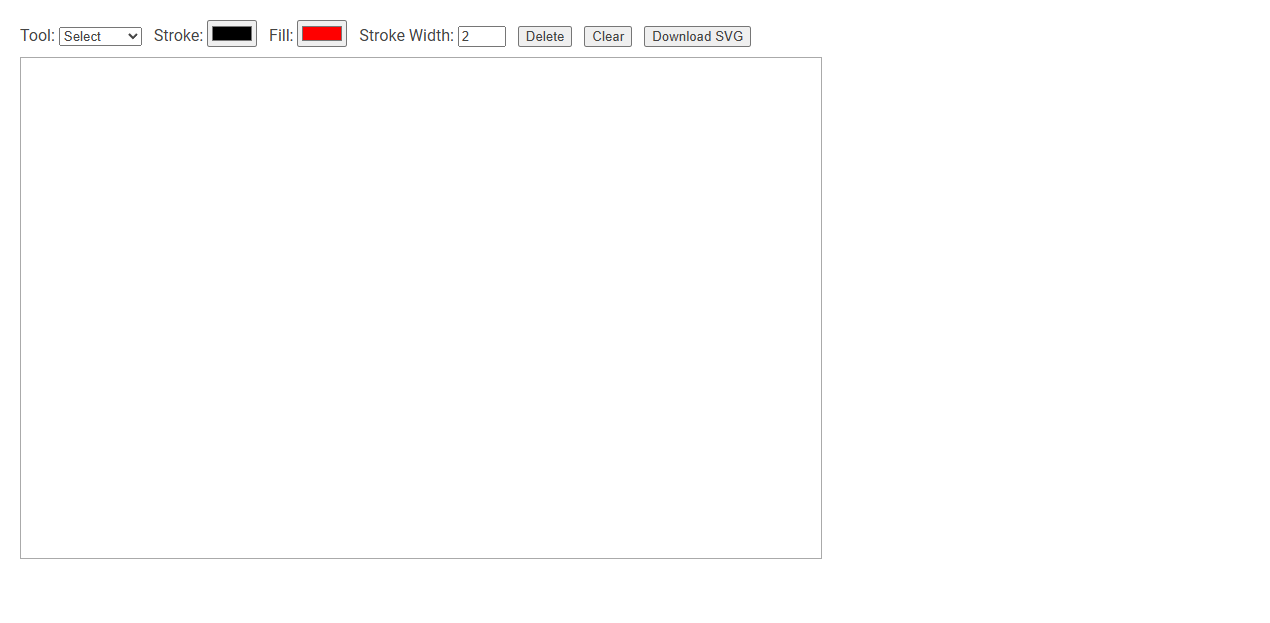
The SVG editor tool is a web-based application designed for creating and editing Scalable Vector Graphics (SVG) directly in your browser. It allows users to select drawing tools, customize stroke and fill colors, adjust stroke width, and manage objects by deleting, clearing, or downloading the SVG file for versatile graphic design needs. This tool is ideal for designers, developers, or anyone needing quick vector graphic edits without the need for complex desktop software.
How to use this tool?
Complete Guide to Using the SVG Editor Tool
-
Select a Tool:
Choose the desired drawing tool from the "Tool" dropdown menu. Typical options might include:
- Select: Move/resize existing shapes.
- Rectangle: Draw rectangles.
- Ellipse: Draw ellipses/circles.
- Line: Draw straight lines.
- Path or Freehand: Draw custom paths. -
Set Stroke and Fill Colors:
Next to "Stroke," click the color box to change the border color of your shapes. For the inside color, click the "Fill" color box. -
Adjust Stroke Width:
Enter a number in the "Stroke Width" box to set the thickness of the shape's border. -
Draw on the Canvas:
With a drawing tool selected, click and drag inside the large rectangular canvas to create your shape. -
Select and Manipulate Shapes:
Select "Select" from the tool list to move or resize shapes you have drawn. You may need to click on a shape to activate it. -
Delete Shapes:
Click on a shape to select it, then press the "Delete" button to remove it from the canvas. -
Clear the Canvas:
To remove all shapes and start fresh, click on the "Clear" button. -
Download SVG:
When you're done, press "Download SVG" to save your drawing. The file will be downloaded in SVG format for further editing or use.
Tips & Notes:
- To change a shape's stroke or fill after it's created, select the shape and adjust the colors before drawing another shape.
- SVG is a vector format, so your drawing will be scalable to any size without loss of quality.
- You can re-import your downloaded SVG into other vector graphics software for advanced editing.
Introduction to Effortless SVG Editing Online
Effortless SVG editing online enables users to create and modify scalable vector graphics with intuitive tools directly in web browsers. Advanced SVG editors support features like layering, path manipulation, and real-time previews, streamlining the design process for web developers and graphic designers. Cloud-based platforms ensure accessibility and collaboration, enhancing productivity without the need for complex software installations.
Key Features of the Free SVG Editor Tool
The Free SVG Editor Tool offers intuitive vector graphic design with precision path editing and scalable image creation. Key features include real-time object manipulation, customizable layers for organized workflow, and support for multiple export formats such as SVG, PNG, and PDF. This tool also provides automatic shape recognition and seamless integration with popular design software, enhancing efficiency for both beginners and professionals.
How to Access and Start Using the SVG Editor
Access the SVG editor by visiting its official website or downloading the desktop application compatible with Windows, macOS, or Linux. Launch the editor to create a new file or import existing SVG files for editing using intuitive vector design tools and layers. Save or export your finished SVG graphics in multiple formats for web, print, or digital projects.
Choosing Drawing Tools: Select, Rectangle, Ellipse, Line, Path
Choosing drawing tools in an SVG editor involves understanding the functions of Select, Rectangle, Ellipse, Line, and Path tools. The Select tool enables precise manipulation of objects, while the Rectangle and Ellipse tools create basic geometric shapes essential for design structure. The Line tool facilitates the creation of straight segments, and the Path tool offers advanced control for drawing complex shapes with customizable curves and angles.
Customizing Stroke and Fill Colors in SVG Designs
Customizing stroke and fill colors in SVG designs enhances visual appeal and clarity, making your graphics more engaging. You can easily modify these attributes using vector editing tools or directly within the SVG code by adjusting the 'stroke' and 'fill' properties. Precise color control allows for better brand alignment and improved user experience across digital platforms.
Modifying Stroke Width for Precise SVG Artwork
Modifying stroke width in an SVG editor allows for precise control over the visual weight of vector paths, enhancing the clarity and impact of artwork. Tools like Adobe Illustrator and Inkscape offer intuitive stroke adjustment features that enable designers to fine-tune line thickness in pixels or relative units. Accurate stroke width modification contributes to scalable, sharp, and professional SVG graphics optimized for web and print use.
Creating and Manipulating Shapes on the Canvas
An SVG editor enables precise creation and manipulation of vector shapes such as rectangles, circles, and paths directly on the canvas. Users can adjust attributes like size, color, stroke, and position through intuitive controls or code editing. Advanced features include shape grouping, layering, and path editing for detailed graphic design workflows.
Removing and Clearing Objects in the SVG Editor
Removing and clearing objects in an SVG editor enables precise control over graphic elements by deleting unwanted shapes or groups. Users can select individual objects or multiple elements to remove them instantly, ensuring a clean workspace. Clearing the canvas resets the entire SVG content, providing a fresh slate for new designs.
Downloading and Exporting Your SVG Creations
Effortlessly download your SVG creations in multiple formats including SVG, PNG, and PDF to ensure compatibility across various platforms. Utilize advanced exporting features that preserve vector quality and optimize file size for seamless integration into web and print projects. Secure your designs with customizable export settings that enhance resolution, color profiles, and transparency options.
SVG editor Tool Preview